Installing in Claude Desktop
Add a custom connector, and the one setting everybody gets wrong.
Claude Desktop does not take an access token. It signs in to this application the way a website signs you in, and you approve it once. There's nothing to paste except the address below.
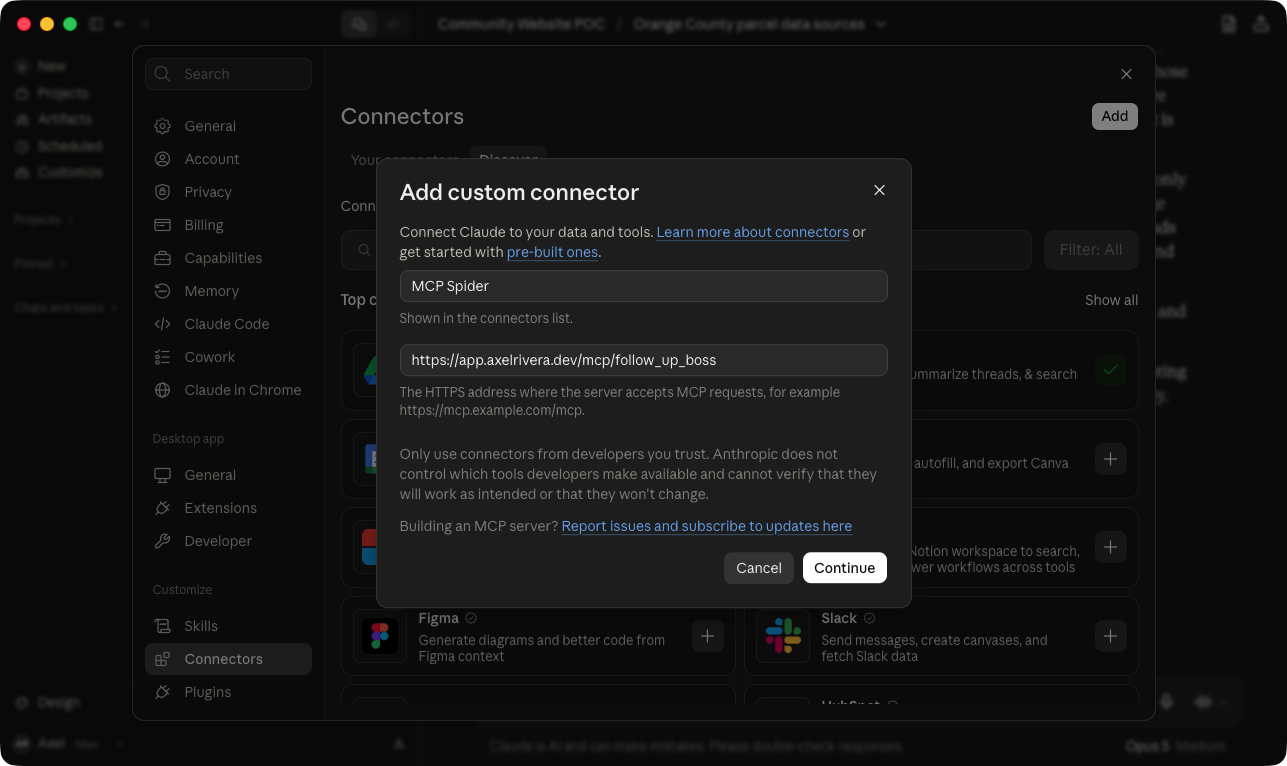
Add a Custom Connector
- Open Claude Desktop, then Settings, then Connectors.
- Choose Add Custom Connector.
- Give it a name you will recognize, such as Follow Up Boss.
- Paste the address below as the URL.
https://app.axelrivera.dev/mcp/follow_up_boss
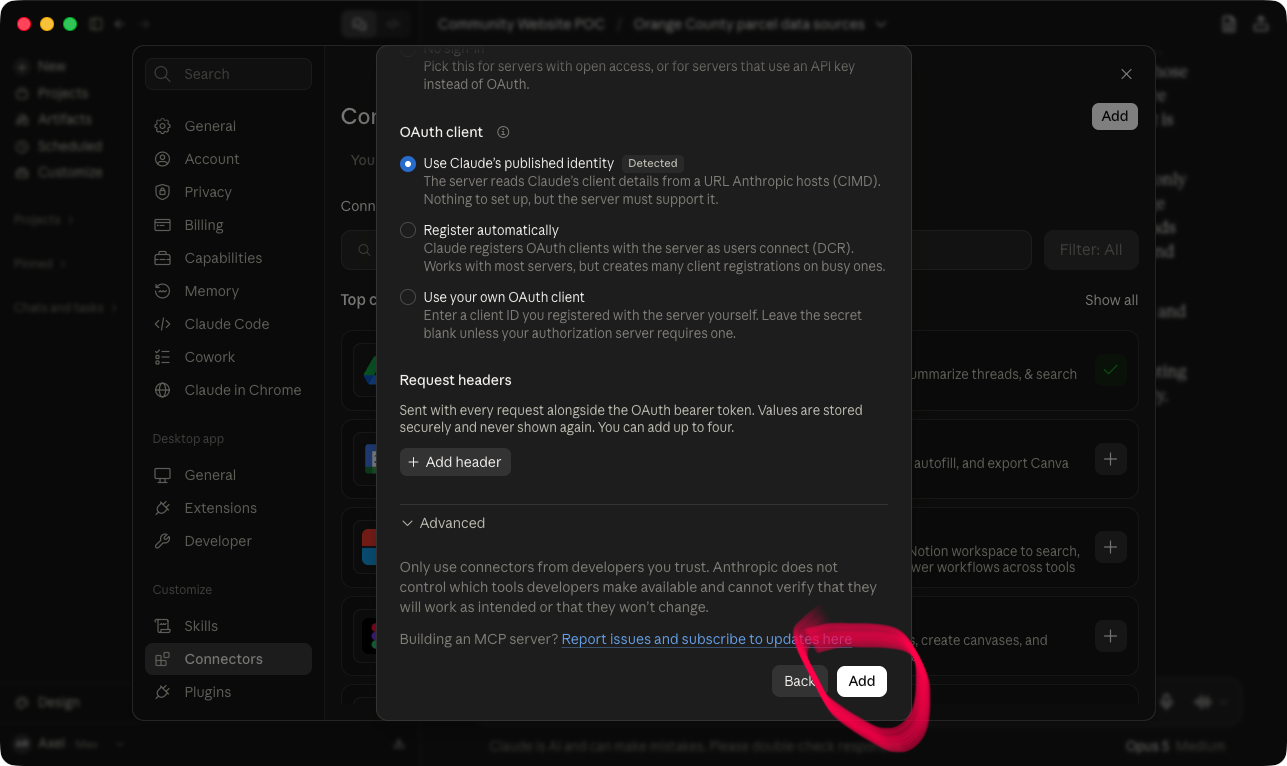
Keep the Defaults and Choose Add
Leave every setting as it is. Scroll to the bottom of the dialog and choose Add.
Sign In and Approve It Once
When you finish the dialog, Claude opens this application in your browser. Sign in if you are not already, and you land on a page naming the application that asked and what it will be able to do. Choose Allow Access and the browser hands you back to Claude, connected.
No token is shown and nothing is copied. That approval is the credential, and it lasts until you take it back.